
Our Products
Manufacturer Patch Management
Our dashboard gives you a snapshot view of your system performance. The visuals help you quickly assess key metrics and make informed decisions.
So whether you’re showing your executives, your customers, or someone else who wants to know how things are going, we want to ensure that our dashboard works for them.
For instance, when you use MSP interfaces as an IT provider, you will see how all your customers are doing on a dashboard. If one or two have issues, you can quickly see what’s happening for the companies you manage. Each of those companies has individual endpoints (computers and other devices).

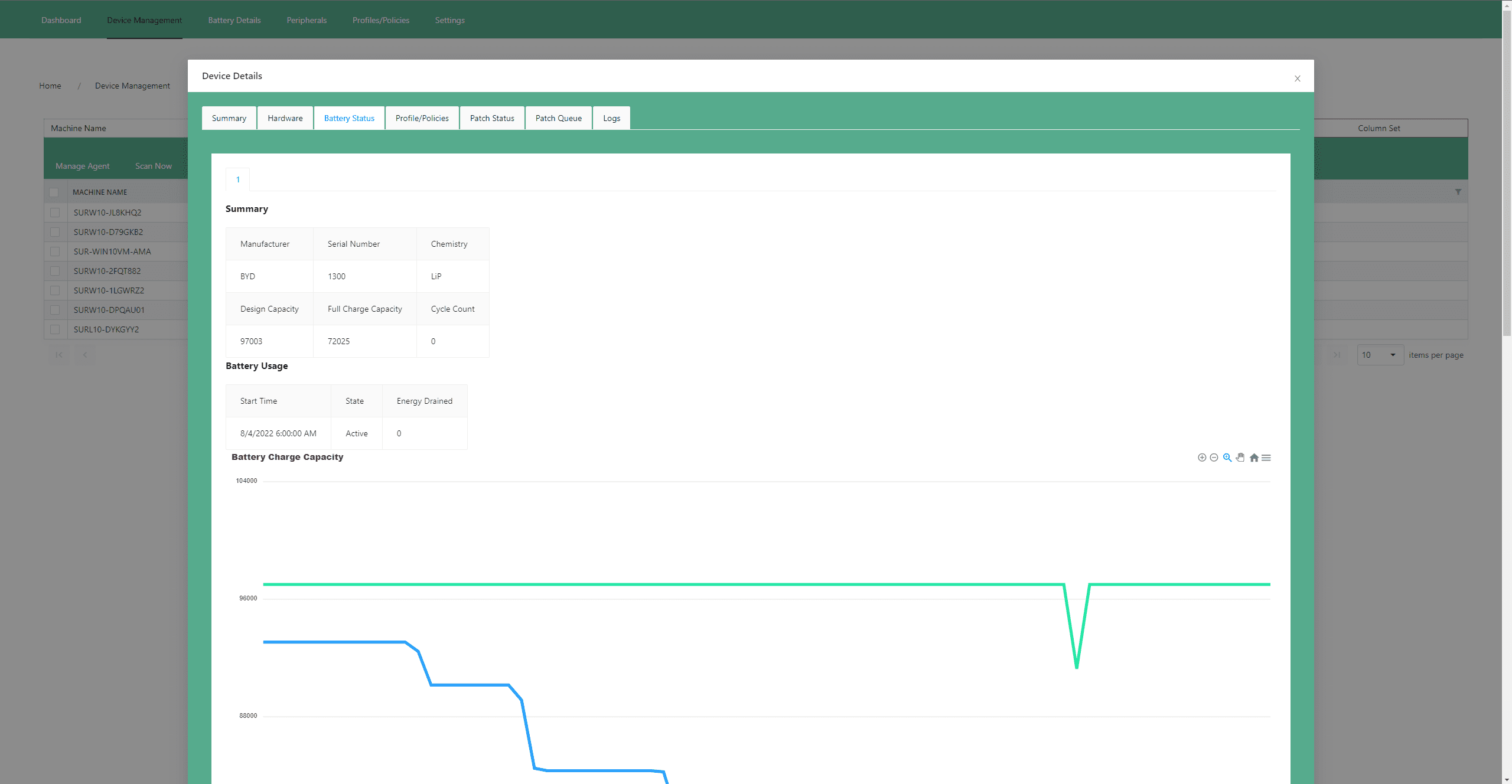
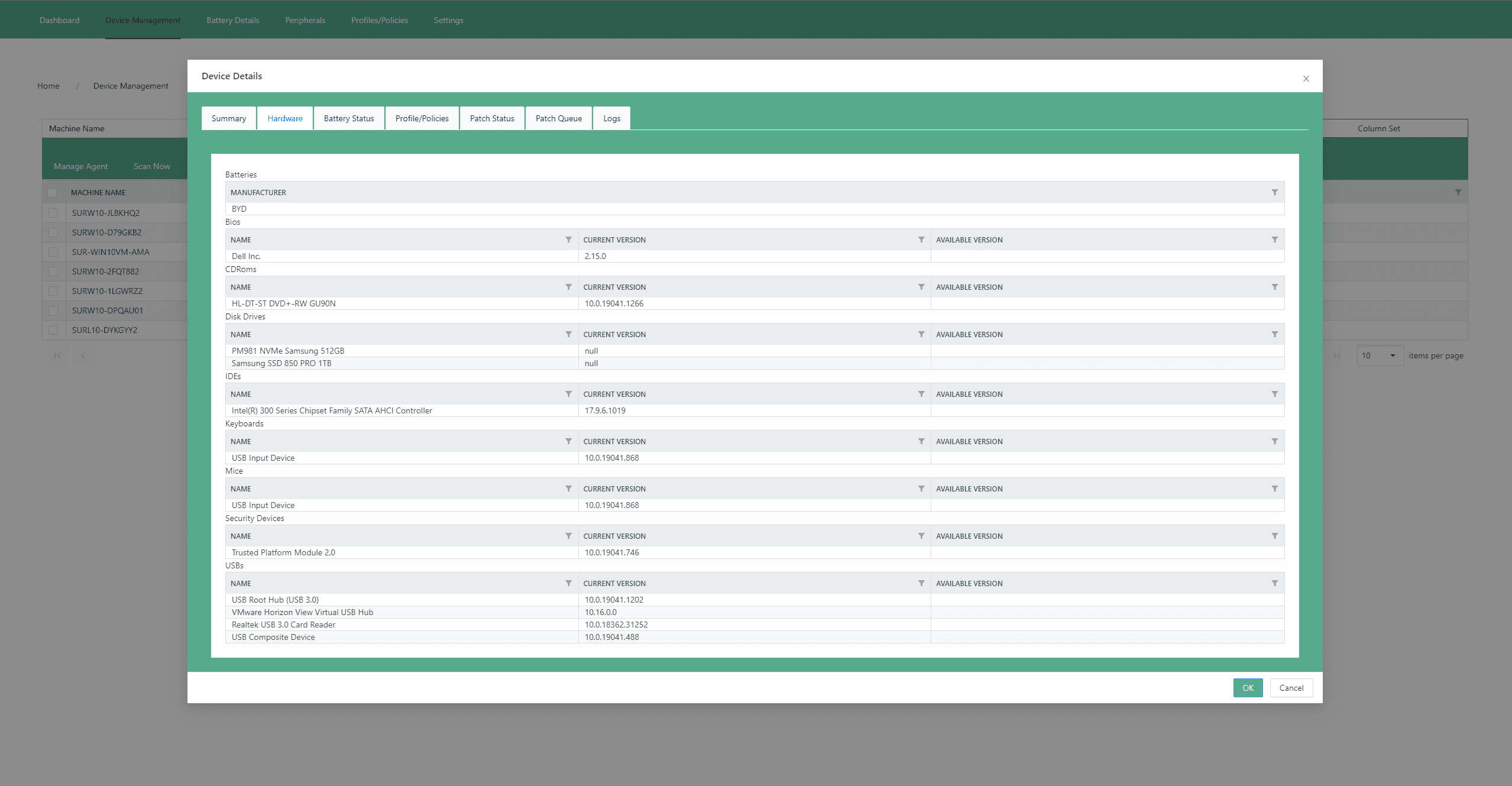
Device Management
At the top of the page, we have a navigation control where you can sort machines by name or by groups. The machine group has a dropdown for customers that shows you all the computers for that specific customer. If you click on one of them, it will isolate you only to see that customer’s computers in that list.
The next button to the left is “views,” which lets us see all of our machines in a way that makes sense to us.
A view is a way to filter what computers we see based upon criteria. For example, you could have a view that says only show me Dell computers or computers with a certain number of patches missing. It’s a way to create custom ways to filter what we see on the screen.
On the right side of the screen, we have column sets, which let us customize what columns are shown in this grid so that we can add or remove them or resort to them. So we can see these machines in a view or in a way that makes sense—maybe you want to see the username on the far left or see the install date and then details, and everything can be shifted around.
Battery Management
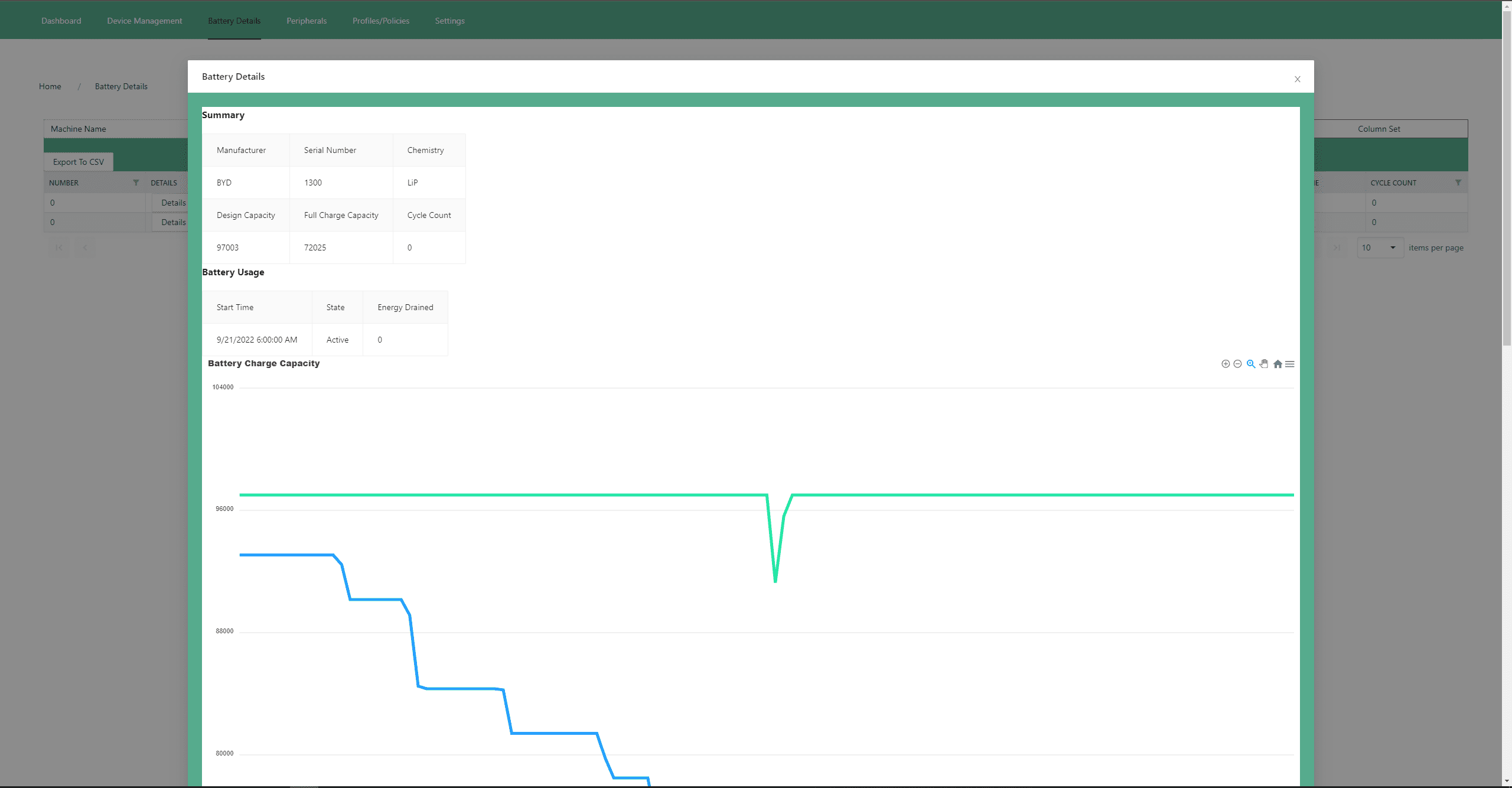
The battery status module lets you know the current state of your battery. The serial number, chemistry type, manufacturer, and design capacity are all shown. The design capacity is the maximum charge the battery could hold on the day it was sold, while charge capacity is how much power it holds today.
The reason it’s crucial to monitor these because the charge continuously decreases over time. You want to be sure you’re getting a good experience from your computer’s battery life—and this module tells you if that’s happening or not!
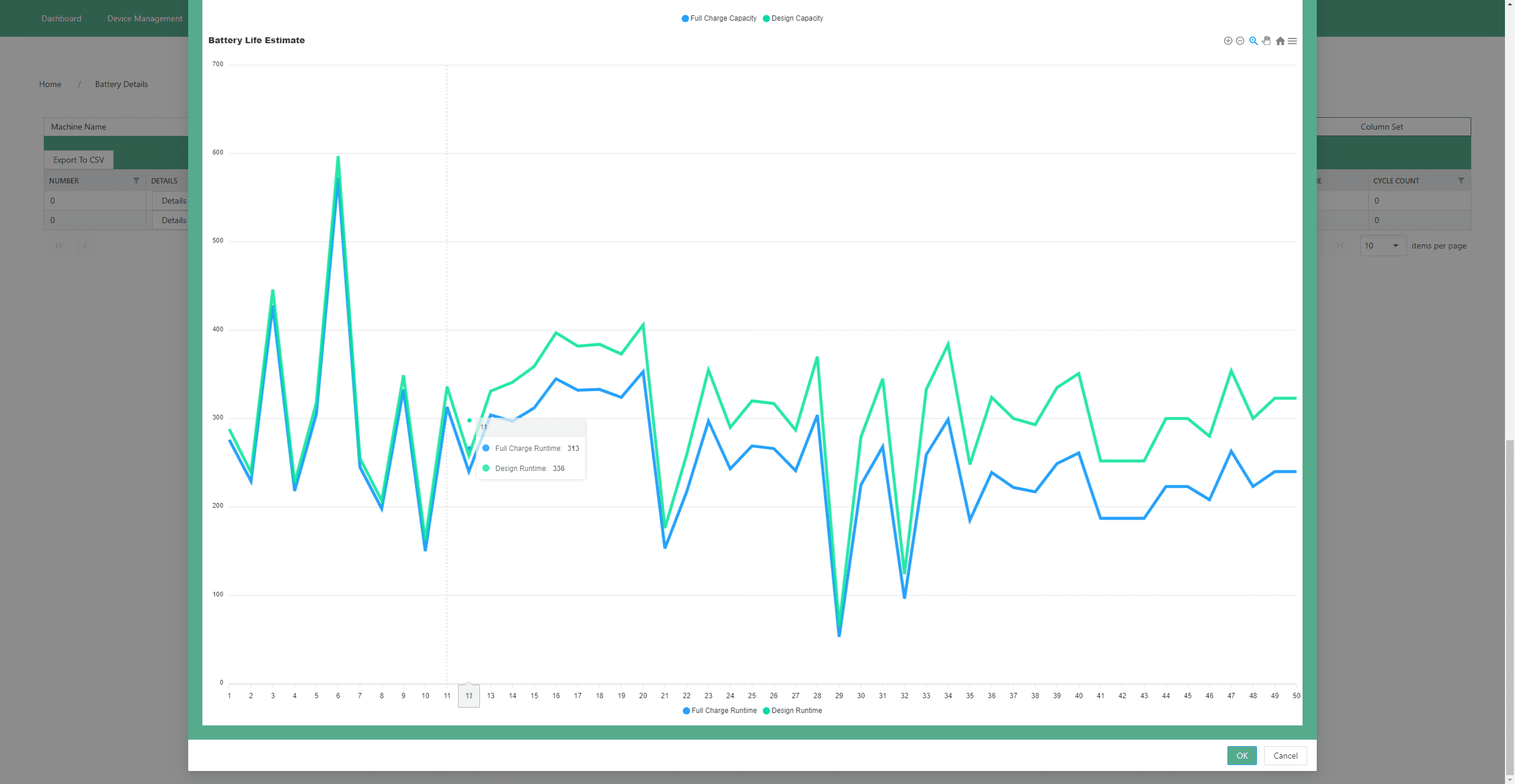
The battery run time duration shows you how long your battery should have run at the factory. For example, if it’s four hours, but after a while, it only runs for three hours before recharging, then you need to replace your battery.
It also shows the actual run time before the battery is fully discharged. So let’s say it goes from four hours to three and a half, then down to three hours, then two and a half, and then just keep dropping. The goal is if you can tell that’s happening, you know you need a new battery taken care of, versus if you don’t have that kind of information, you may be sending a tech on site.
Most people don’t realize that the power supply in their computer is also a battery. It’s probably one of the most important batteries in your computer—it keeps your processor running when you’re not plugged into an AC power source.
The processor drops its processing capabilities in half if running on low power. So you might start seeing all of a sudden where your performance is the computer’s running slow, but a technician can’t figure out why it’s running slower than usual. So you’ve got hours of technician time trying to figure out where something’s coming from—not knowing that your battery is bad or is not performing at peak performance unless it’s plugged in directly to a power cycle or into AC power.
Even in some cases, it’ll still be problematic because the computers still feed their source from the battery itself. Having this kind of information when you’re troubleshooting is valuable.
Peripheral Devices
This is where we’ll look at monitors, keyboards, mice, webcams, and batteries.
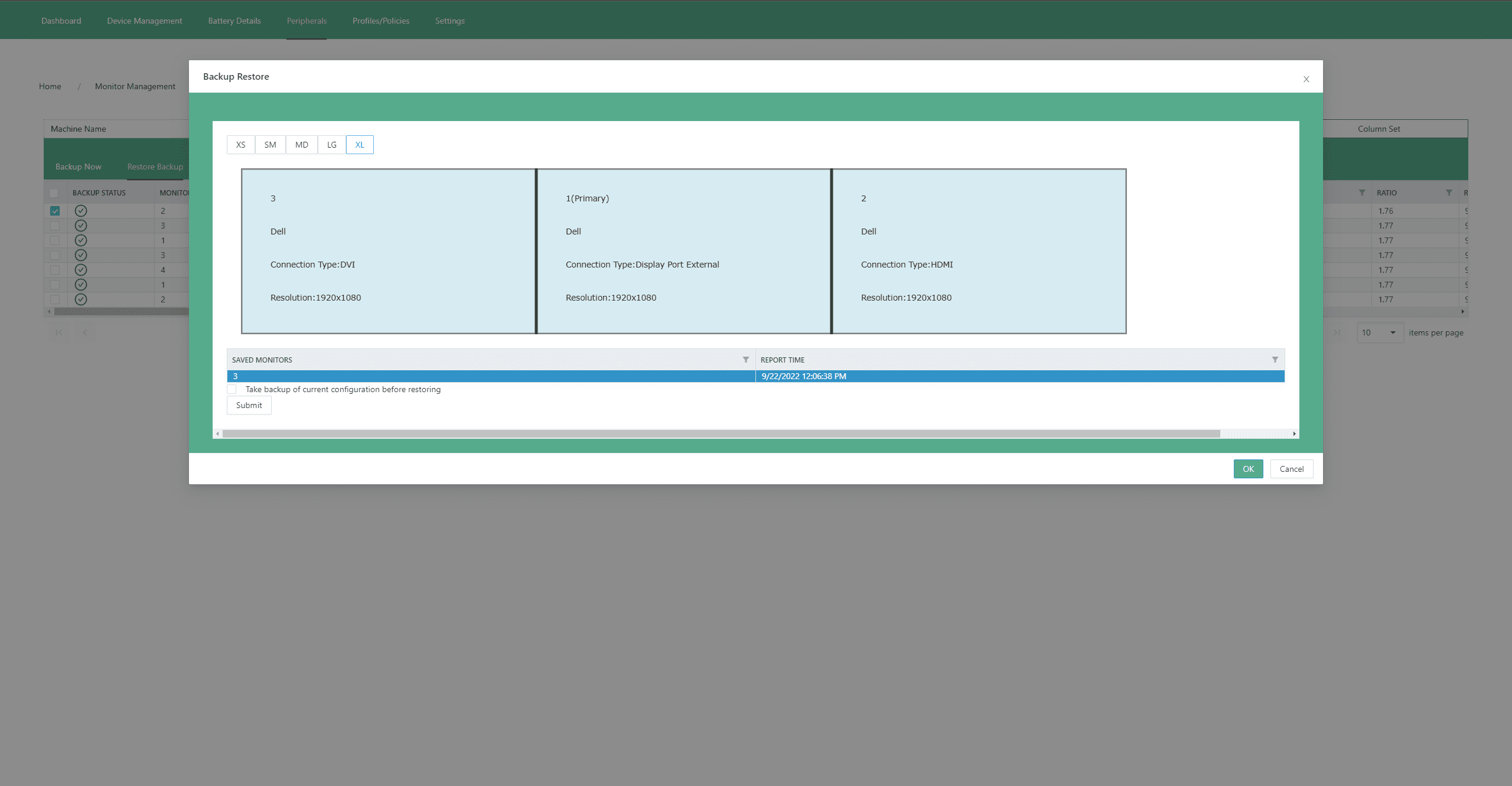
We can back up the monitor configuration so you can see what monitors the person has. We can also tell you what docking station they’re using. We have a visual inventory of all a person’s devices—so it’s easy to see what they have and don’t have.
And then lifecycle management: we can tell you when a new device was installed or removed from their computer, how many times it’s been used and when it was last updated.
We also keep track of power management—like uninterruptable power supplies (UPS) and battery backups—and patch management, ensuring that your security updates are being applied correctly and on time.
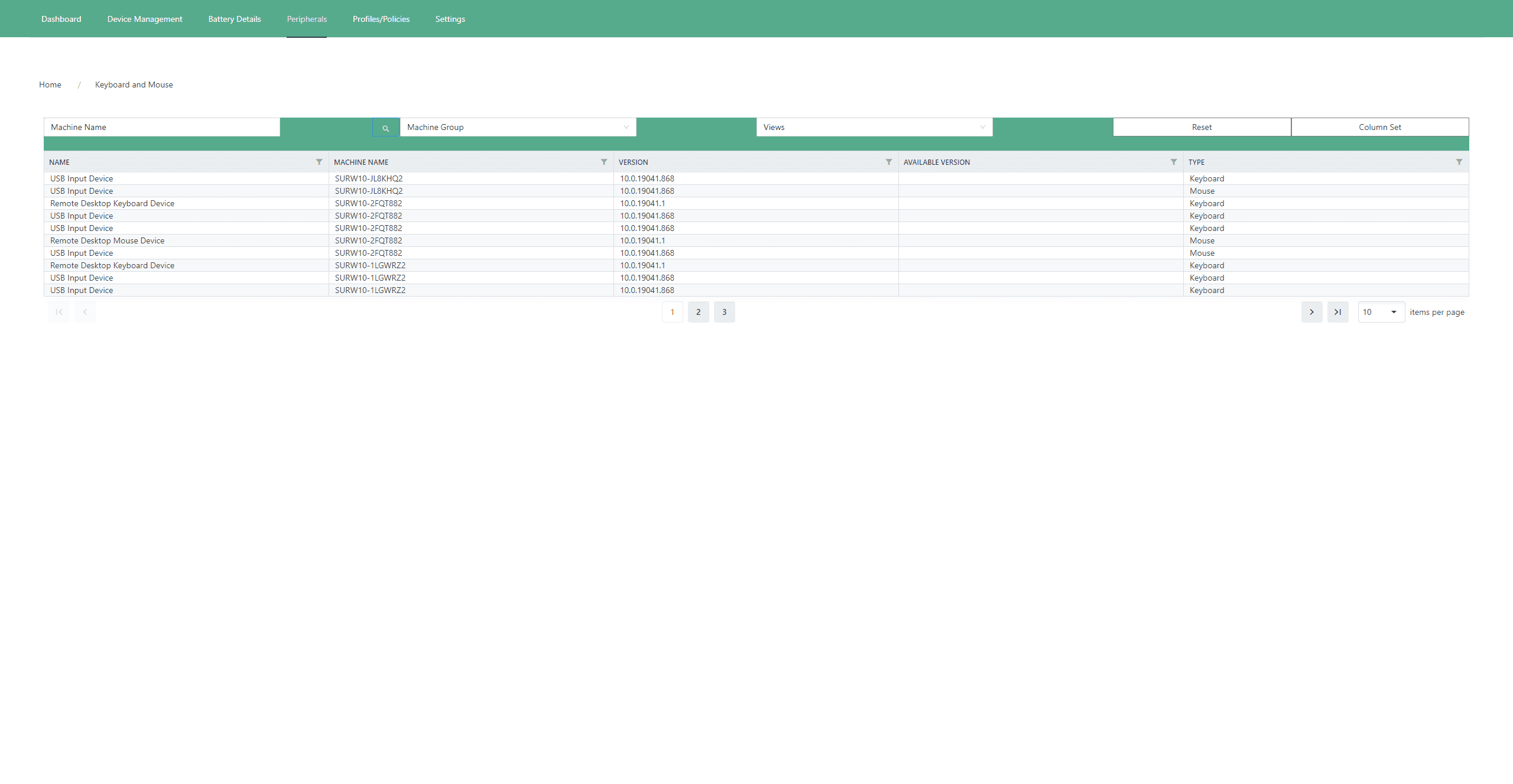
Keyboard and Mouse Management
When talking to your customers, it’s important to know what they have and don’t have. If they have some sort of tricked-out mouse, webcam, or battery backup device, that’s great! But if they don’t and you live in a place where you have power issues, not having a battery backup device can destroy a computer if it’s not addressed after some time—power fluctuations and computers don’t like each other. So you can use that as a revenue generator: every customer with five computers with battery backups gets an additional 25 installed. It also reduces support calls because the battery backups keep the computer healthy and running smoothly.
Policies
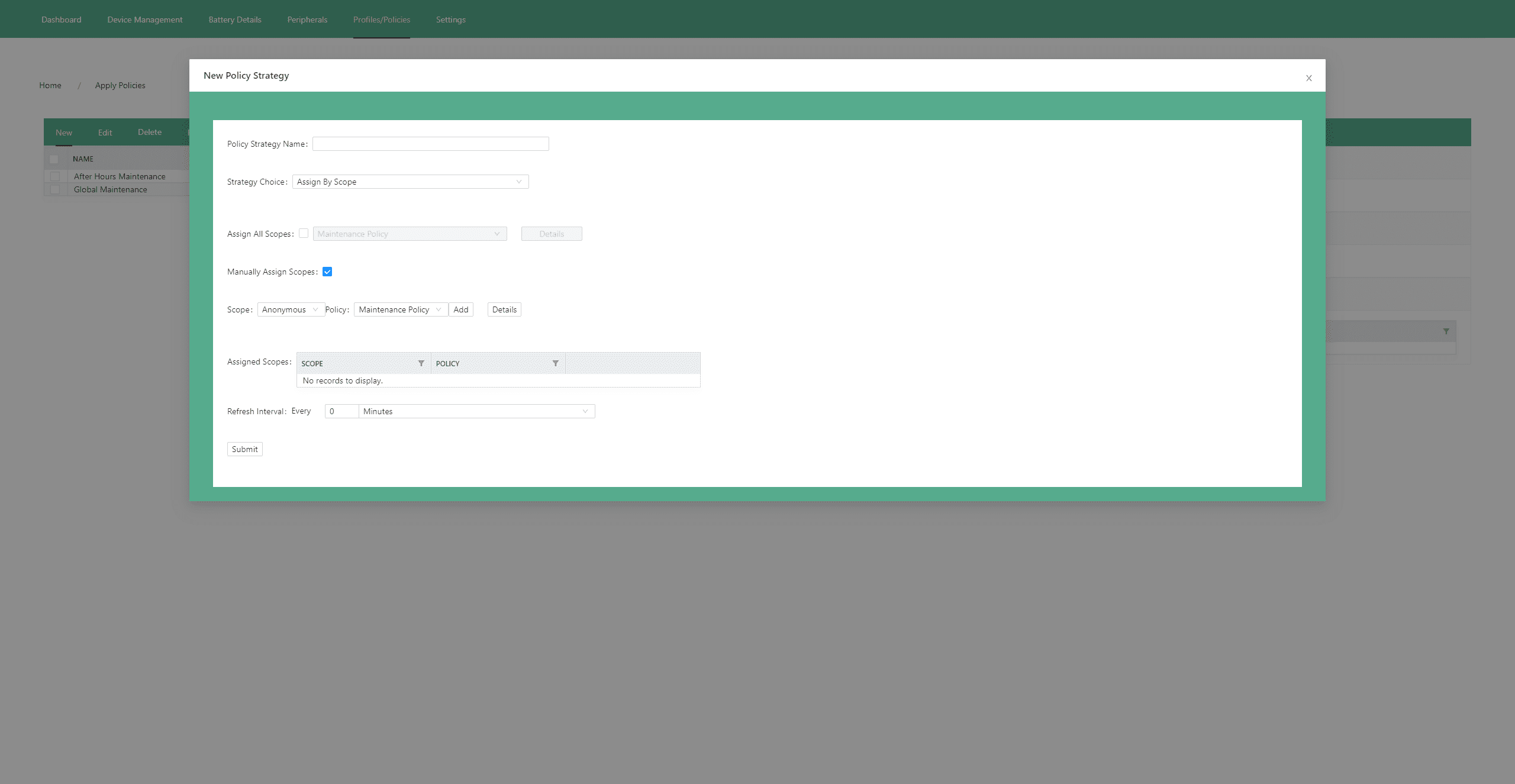
Policies are the best way to ensure that your systems are configured with the best practices and proper settings.
If you change one of these settings, go back and set it back to what the policy says so that it keeps your computers always configured with the best practice settings. This helps with consistency and saves time from a technical standpoint. It’s very transparent what the settings are for a system. You can also leverage technician time because you’re not spending manual hours configuring the settings. You get the highest production quality. The policy enforces the best setting every time.